Old MacBook's are still beautiful pieces of hardware, but they are often held back by proprietary SSDs that fail, or old displays that no longer please your eyes. Instead of letting that hardware become e-waste, you can repurpose it into a power-efficient Linux server. By using a simple adapter we can install a standard 4TB NVMe drive and run Rocky Linux.
What's the problem?
- Old MacBook is collecting dust simply because the proprietary SSD is broken or too small
- Replacement Apple-specific SSDs are impossible to find
- MacOS has dropped support for this older hardware
What's the solution?
- Use a simple adapter to fit a standard M.2 NVMe SSD into the MacBook
- Install Rocky Linux 10 for a stable, enterprise-grade server environment
- Run Docker containers, backup servers, websites and developer tools
The Hardware Toolkit
Sintech NGFF M.2 Adapter Card and NVMe SSD:
This converts Apple’s proprietary slot into a standard M.2 slot.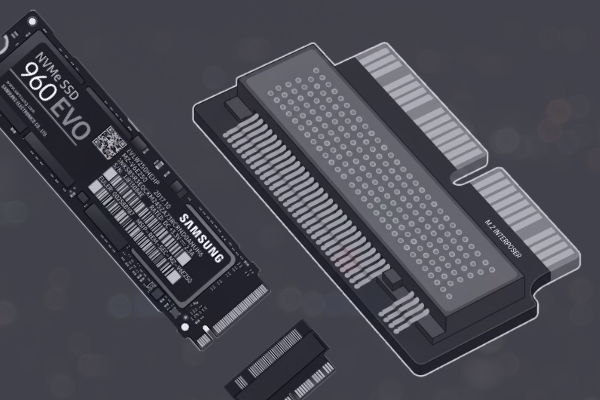
iFixit Mako Driver Kit:
Specifically for the P5 Pentalobe bit required to open the MacBook case.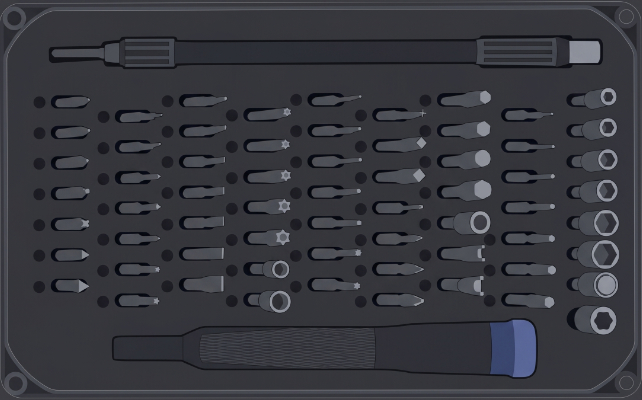
USB Drive and USB to Ethernet Adapter:
At least 16GB for the Rocky Linux 10 installer.
Most MacBook Airs lack a built-in LAN port, which is essential for stable server use.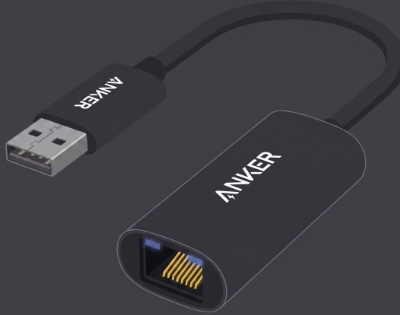
Laptop Stand:
Keep your desk organized and clean with a laptop stand.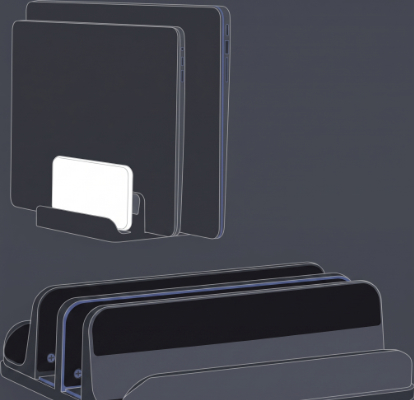
The Physical Upgrade
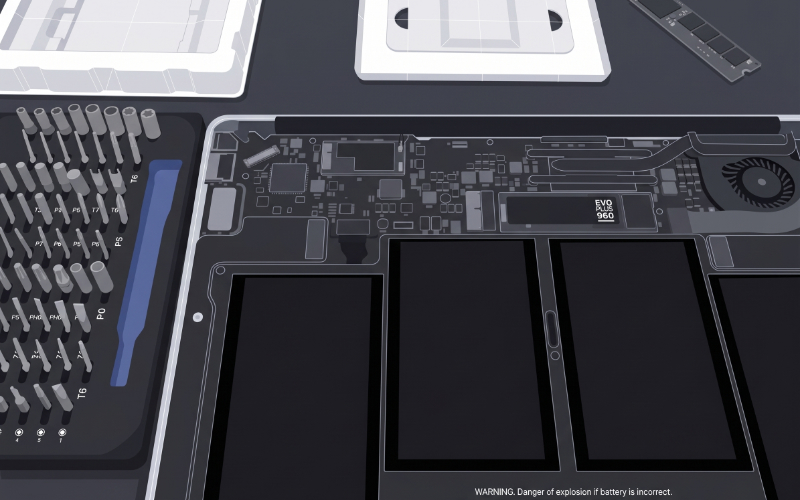
- Use the P5 Pentalobe driver to remove the bottom case screws.
- Disconnect the battery.
- Remove the single screw holding the original SSD and slide it out.
- Insert the Sintech Adapter into the slot, then slide your new 4TB NVMe SSD into the adapter.
- Secure the drive with the screw, reconnect the battery, and close the case.
Configuring Rocky Linux for "Lid Closed" Operation
Once Rocky Linux 10 is installed, you likely want to tuck the laptop away on a shelf. By default, Linux will suspend the laptop when the lid is closed. To turn it into a proper "headless" server, we need to change how it handles the lid switch.
Update the Kernel display settings
To prevent the screen from staying powered on or causing issues when closed, update the GRUB arguments to blank the console after 60 seconds.
grubby --update-kernel=ALL --args="consoleblank=60"You can verify the setting after a reboot with:
cat /sys/module/kernel/parameters/consoleblankDisable Suspend on Lid Close
We need to tell systemd to ignore the lid state so the server keeps running when the laptop is shut. Edit the login configuration file:
sudo vi /etc/systemd/logind.confFind or add the following lines under the [Login] section:
[Login]
HandleLidSwitch=ignore
HandleLidSwitchExternalPower=ignore
HandleLidSwitchDocked=ignore
Apply Changes
Restart the systemd-logind service to apply the settings:
sudo systemctl restart systemd-logindConclusion
You now have a silent, low-power server with 4TB of fast NVMe storage. By saving this hardware from a landfill, you’ve gained a perfect environment for running Docker, hosting a private cloud, or practicing your Linux sysadmin skills. Rocky Linux 10 provides the stability of an enterprise OS, making your "old" MacBook Air more capable than it ever was on MacOS.