The best setup for locally hosted code assistant:
- Ollama
- DeepSeek Coder v2 (12GB VRAM recommended)
- VScode
- Continue Plugin
This will guide you through the process of setting up Ollama and the Continue.Dev extension for Visual Studio Code. This setup will enable you to leverage AI for enhanced coding assistance.
Install Visual Studio Code
If you haven't already, install VSCode: https://code.visualstudio.com/download
Install Ollama
Ollama is a command line tool that helps manage and deploy machine learning models.
- Download Ollama: https://ollama.com/download
- Install OllamaSetup.exe
- If you want to pick a custom models location. (By default, ollama uses the C:\ drive)
Edit system environment variables:
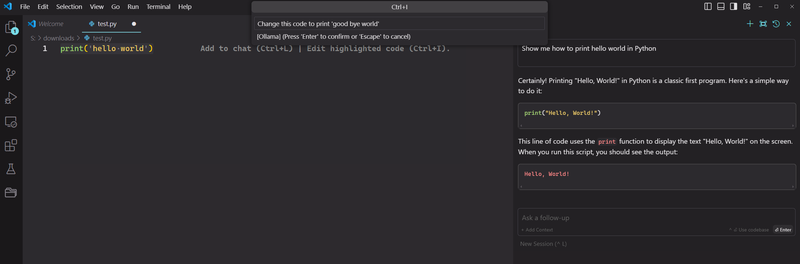
Set OLLAMA_MODELS
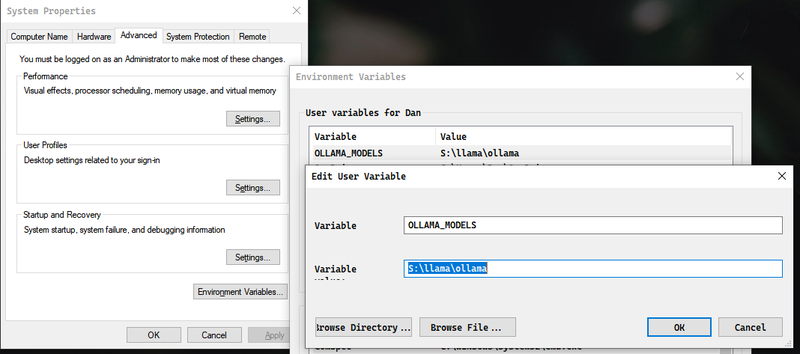
Value of 'S:\llama\ollama' for example. This might be wise if your C:\ drive is full.
Install DeepSeek Coder 2
Ollama offers a convenient install page where you easily copy and paste the install command.
See the deepseek-coder-v2 install page https://ollama.com/library/deepseek-coder-v2
For 8GB VRAM copy:
ollama run deepseek-coder-v2
For 12GB+ VRAM copy (higher quality):
ollama run deepseek-coder-v2:16b-lite-instruct-q5_K_M
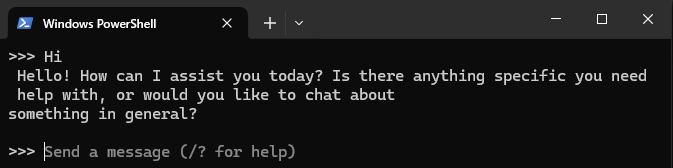
- Run the ollama command based on your GPU VRAM (in a Windows PowerShell Terminal)
- Confirm the model is working with a test in the terminal
Install Continue.Dev Extension for VSCode
The Continue.Dev extension enhances VSCode with AI-assisted coding features.
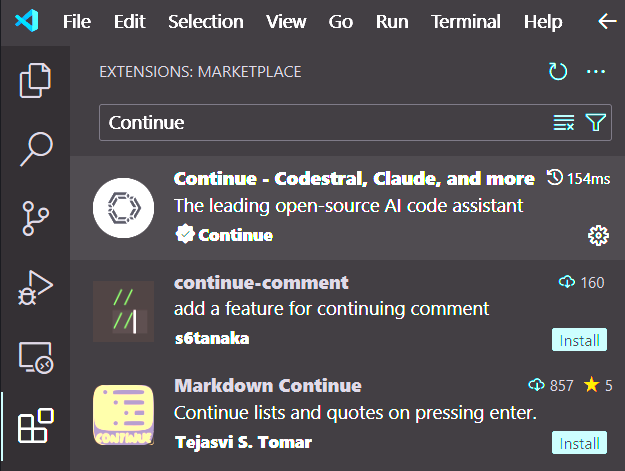
- Open VSCode
- Go to Extensions
- Search for Continue.Dev
- Install Continue.Dev
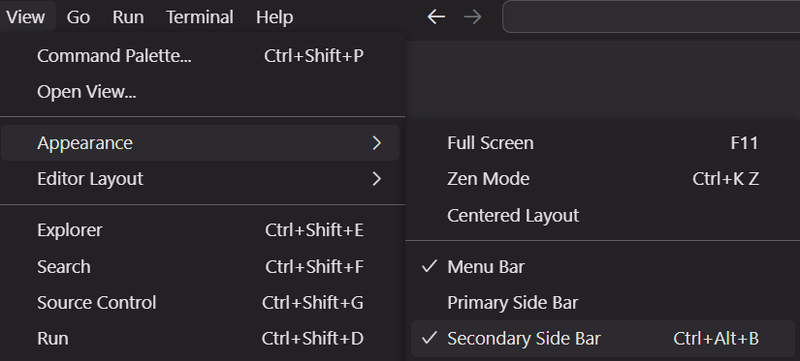
- Drag the Continue.Dev icon in the the right-side 'secondary side bar'
Here is their quickstart page: https://docs.continue.dev/quickstart
Configure Continue.Dev to use Ollama
Integrate Ollama with the Continue.Dev extension by modifying the config file.
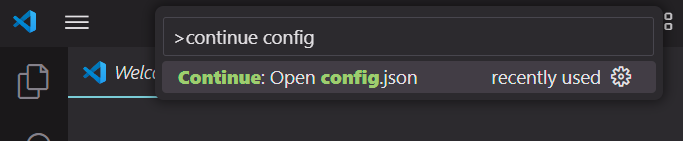
- Open Continue.Dev Settings: (VSCode shortcut ctrl + shift + p)
"continue config", enter
- Set Ollama config (specify the model you selected)
{
  "models": [
    {
      "title": "Ollama",
      "provider": "ollama",
      "model": "deepseek-coder-v2:16b-lite-instruct-q5_K_M"
    }
  ],
  "allowAnonymousTelemetry": false,
  "embeddingsProvider": {
    "provider": "transformers.js"
  }
}- Optional: Disable Telemetry (VSCode shortcut ctrl + shift +p)
Open user preferences
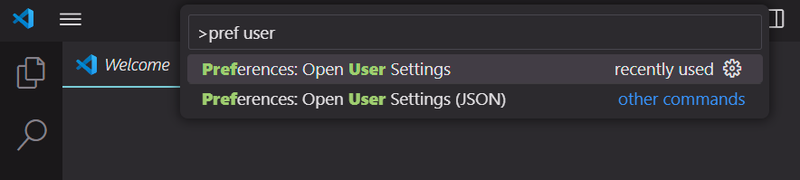
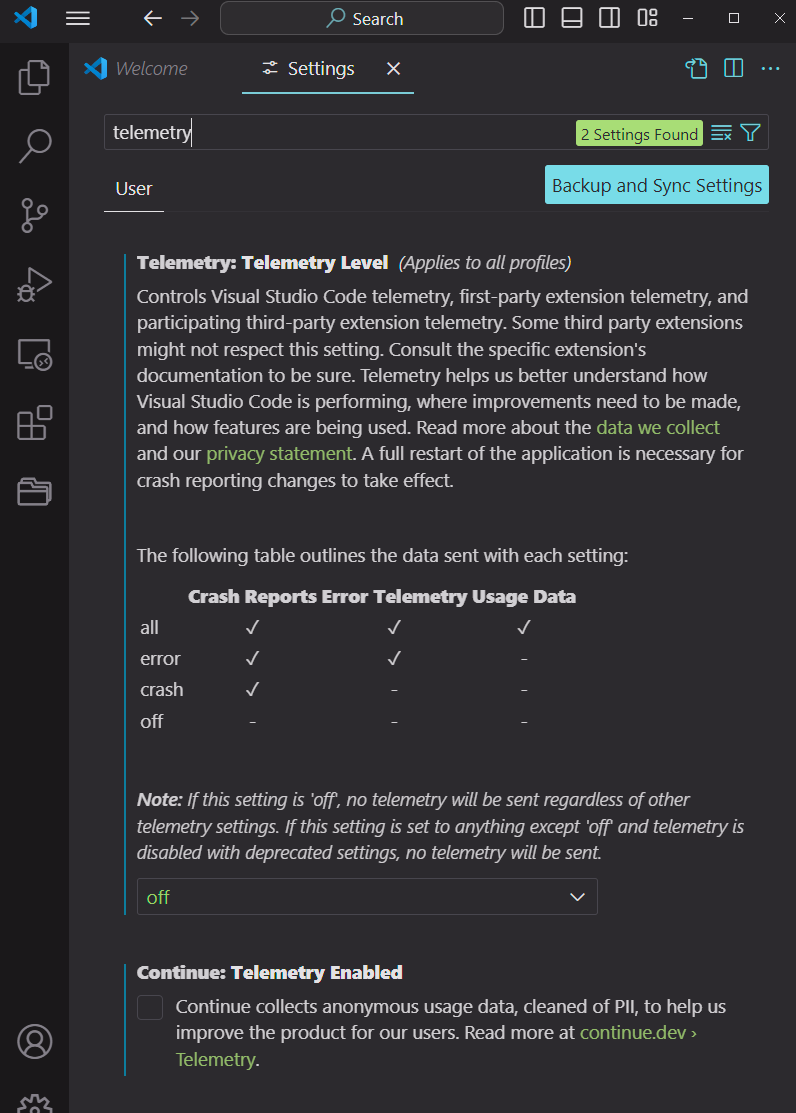
Disable Telemetry for VSCode and Continue by searching "telemetry"
Use Continue in VSCode
- Make sure to Enable Secondary Side Bar for AI chat:
- Try chatting with DeepSeek, ask coding questions
- Select text and use shortcut ctrl + i to have the AI modify or add code to the file
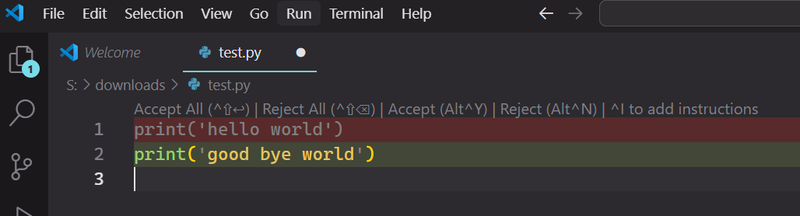
Accept or Reject the changes
Conclusion
Congratulations! You have successfully set up Ollama and the Continue.Dev extension for AI-assisted coding in VSCode. You are now an AI mastermind with unlimited powers.