Using AI coding agents in YOLO mode can give fast results, but giving them direct access to your host machine is a massive security risk. The Pi coding agent defaults to executing shell commands and modifying files without asking for confirmation. It's fast, but if it hallucinates the wrong bash command, you can rm -rf your computer away.
Instead of running it locally, I sandbox the agent inside a VSCode devcontainer. It restricts Pi to a specific project folder, and if the agent manages to wreck the environment, I can just rebuild the container in a few seconds.
The Helmet: VSCode Devcontainers
A devcontainer runs your workspace inside a Docker image. You give the agent the specific tools it needs while walling off the rest of your system. You only really need two files to set this up: a Dockerfile and a devcontainer.json in a .devcontainer directory in the root of your project.
- Dockerfile - defines the container image (OS, packages, users)
- devcontainer.json - tells VSCode how to build and run the container
The Dockerfile: Building the Sandbox
This example sets up Python and Node.js, installs the Pi agent, and creates a non-root user.:
FROM ghcr.io/astral-sh/uv:python3.14-trixie-slim

# Install system dependencies
RUN apt-get update && export DEBIAN_FRONTEND=noninteractive \
    && apt-get -y install --no-install-recommends curl git jq vim bash ca-certificates xz-utils \
    && apt-get clean -y && rm -rf /var/lib/apt/lists/*

# Install Node.js 24.16.0
RUN NODE_VERSION=24.16.0 \
    && ARCH=x64 \
    && curl -fsSLO "https://nodejs.org/dist/v$NODE_VERSION/node-v$NODE_VERSION-linux-$ARCH.tar.xz" \
    && tar -xJf "node-v$NODE_VERSION-linux-$ARCH.tar.xz" -C /usr/local --strip-components=1 \
    && rm "node-v$NODE_VERSION-linux-$ARCH.tar.xz"

# Install Pi agent
RUN curl -fsSL https://pi.dev/install.sh | bash

# Create a non-root user 'vscode'
ARG USERNAME=vscode
ARG USER_UID=1000
ARG USER_GID=$USER_UID

RUN groupadd --gid $USER_GID $USERNAME \
    && useradd --uid $USER_UID --gid $USER_GID -m -s /bin/bash $USERNAME

USER $USERNAME
The devcontainer.json:
This file tells VSCode how to handle the container and passes in your environment variables (like API keys from model providers):
{
    "name": "UV Python 3.14 (Trixie) + Pi Agent",
    "build": {
        "dockerfile": "Dockerfile"
    },

    "remoteUser": "vscode",

    "runArgs": [
        "--env-file",
        "${localWorkspaceFolder}/.env"
    ],

    "customizations": {
        "vscode": {
            "settings": {
                "terminal.integrated.defaultProfile.linux": "bash"
            }
        }
    },

    "postCreateCommand": "mkdir -p .pi && ln -sfn $(pwd)/.pi ~/.pi"
}runArgs: Loads environment variables from your local .env file, which keeps you from hardcoding API keys into the Docker image. postCreateCommand: Symlinks the agent's .pi state directory to your local project folder. If you have to rebuild the container, the agent's chat history and settings will persist, and remain specific to this project only.
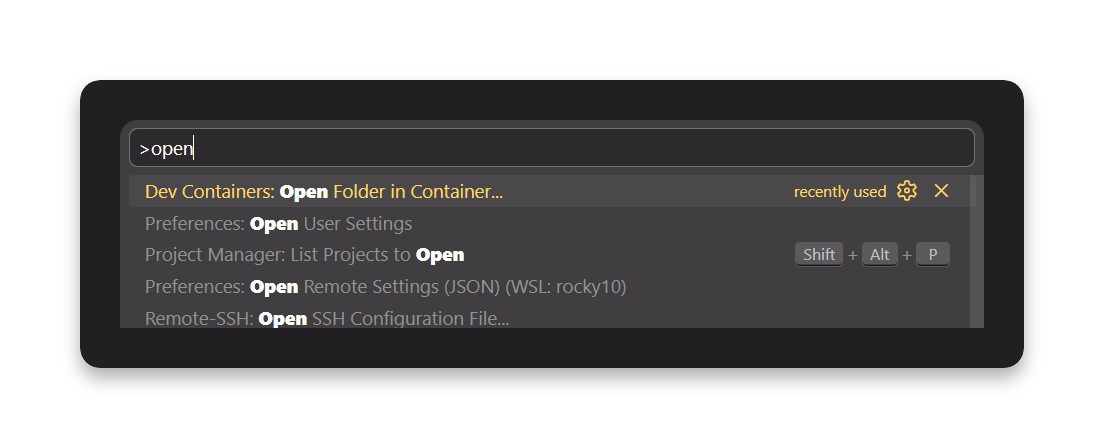
To launch the container, open your project folder, then run "Open Folder in Container" in VS Code.
Why This Matters
Running agents with full access to your computer is just too risky. If you use a devcontainer, you restrict the agent to your project volume, revoke its root access, and ensure any mistakes it makes are easily fixable. You get the speed of an autonomous agent without gambling with your host machine.
| Without the helmet | With the helmet |
|---|---|
| Access to your entire home directory | Confined to the mounted workspace |
sudo may be available | No root access |
| One bad command equals real damage | Worst case: rebuild the container |
| Agent state/tools scatter across projects | Agent state lives in .pi/ alongside your code (add .pi/ to gitignore!) |
Conclusion
YOLO responsibly. Wear a helmet.